How to Give Your AI Agent Secure AWS Access Using the MCP Server
Introduction
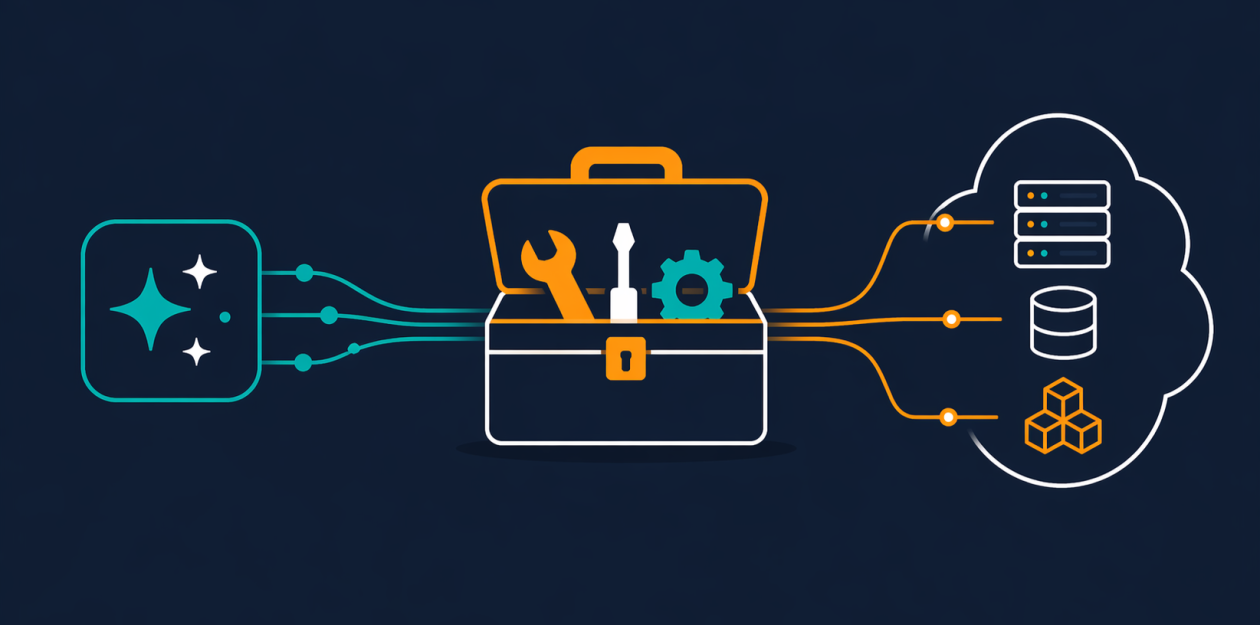
AI coding agents have become powerful allies, but giving them direct access to AWS often raises security concerns. The traditional approach—providing broad IAM credentials—creates risk, while limiting access often cripples the agent's effectiveness. The newly general-available AWS MCP Server solves this dilemma. It provides a managed remote Model Context Protocol (MCP) server that offers authenticated, fine-grained access to all AWS services via a small, fixed set of tools. This guide walks you through setting up and using the AWS MCP Server to empower your AI agent without exposing your entire AWS environment.
What You Need
- An AWS account with permissions to create IAM roles and policies.
- Existing IAM credentials (access key and secret key) for programmatic access.
- An AI coding assistant or agent that supports the Model Context Protocol (MCP). Examples include Claude, Cursor, or custom agents built with MCP integrations.
- Basic familiarity with AWS IAM and the AWS CLI.
- Python 3.10+ installed locally if you plan to test the run_script tool outside the sandbox.
Step-by-Step Guide
Step 1: Configure IAM Permissions for the MCP Server
The AWS MCP Server uses your existing IAM credentials, so you must define a policy that grants the server access to the AWS APIs your agent will need. Unlike older methods, the MCP Server now supports IAM context keys. This means you no longer need a separate IAM permission to use the server; instead, you express fine-grained access directly in a standard IAM policy. For example, you can allow the call_aws tool to invoke only specific API operations or resources.
Create an IAM policy that includes the actions your agent will perform. Attach this policy to the IAM user or role that your AI agent will assume. Keep permissions as narrow as possible—only grant access to the APIs and resources required for the tasks you plan to automate.
Step 2: Connect Your AI Agent to the AWS MCP Server
Once your IAM permissions are set, you need to configure your AI agent to use the MCP Server as a remote tool provider. The exact steps depend on your agent platform, but generally you will provide the MCP server endpoint URL and your IAM credentials (access key and secret key). The MCP Server acts as a proxy, translating agent requests into authenticated AWS API calls. No additional client-side libraries are needed—the agent communicates via the Model Context Protocol.
Step 3: Use the call_aws Tool for Direct API Access
The call_aws tool is the workhorse. It lets your agent execute any of the 15,000+ AWS API operations using its assigned IAM credentials. When you call this tool, you specify the service, action, and parameters—just like using the AWS CLI or SDK. The MCP Server processes the request server-side and returns the response without exposing raw credentials to the agent's context. Because new AWS APIs are supported within days of launch, your agent always has access to the latest services like Amazon S3 Vectors or Amazon Aurora DSQL.
Tip: To avoid consuming your model’s context window, chain multiple API calls using the run_script tool (see Step 5) instead of making sequential call_aws invocations.
Step 4: Retrieve Up-to-Date Documentation with Search and Read Tools
AI agents often rely on outdated training data, leading to incorrect assumptions about services. The MCP Server includes two tools to fix this: search_documentation and read_documentation. These retrieve current AWS documentation and best practices at query time. Documentation retrieval no longer requires authentication, so your agent can look up information even without full API access. Use these tools before any API call to ensure your agent uses the most recent service features and recommended patterns.

Step 5: Execute Server-Side Python Scripts with run_script
Complex workflows that require multiple API calls and data transformations can burn through your model’s context window and slow down interactions. The run_script tool lets your agent write a short Python script that runs in a sandboxed environment on the server. This sandbox inherits your IAM permissions but has no network access, so your agent can process data without exposing your local file system or shell. Use run_script to chain API calls, filter responses, compute aggregates, or transform results—all in a single round-trip. This reduces token consumption and speeds up execution, especially for multi-step tasks.
Step 6: Leverage Skills for Best Practices
The MCP Server has transitioned from Agent SOPs to Skills. Skills provide curated guidance and best practices for common tasks such as deploying infrastructure with AWS CDK, writing IAM policies, or using new services. When your agent encounters a task within a Skill's domain, it can automatically apply proven patterns—avoiding the common pitfalls like overly permissive IAM policies or reliance on the AWS CLI instead of CDK or CloudFormation. Enable Skills by referencing them during MCP configuration or by asking your agent to use a specific Skill.
Tips for Success
- Start with minimal permissions. Grant only the APIs and resources needed for the specific tasks you want to automate. You can always expand later.
- Use the documentation tools first. Always ask your agent to search for current best practices before writing any infrastructure code. This prevents stale configurations.
- Combine calls with run_script. For workflows involving three or more API calls, wrap them in a single Python script using
run_script. It’s faster and more context-efficient. - Monitor token usage. The MCP Server has reduced the tokens required per interaction, but complex sequences can still add up. Use the
run_scripttool to minimize token burn. - Test in a sandbox first. If you’re unsure about permissions, use a non-production AWS account or a restricted IAM role to test your agent’s behavior before going live.
- Keep your agent’s training data relevant. The MCP Server provides up-to-date documentation, but the agent itself may still rely on outdated training. Encourage it to use the search tools frequently.
Related Articles
- AWS Weekly Update: Anthropic and Meta Deepen AI Collaboration, Lambda Gains S3 Files Support
- AI Agent Sandboxing Crisis: Linux Isolation Methods Exposed as Vulnerable
- AWS MCP Server Now GA: Unlocking Secure, Up-to-Date AWS Access for AI Agents
- Stealthy Python Backdoor 'DEEP#DOOR' Exploits Tunneling to Exfiltrate Browser and Cloud Credentials
- 5 Key Insights into Kubernetes v1.36's New Route Sync Metric for Efficient Cloud Controller Management
- Mastering CSS justify-self: 7 Essential Insights for Web Developers
- AWS Interconnect Goes Live: Managed Private Connectivity Across Clouds and to the Last Mile
- Runpod Flash: Revolutionizing AI Development by Eliminating the Container Burden